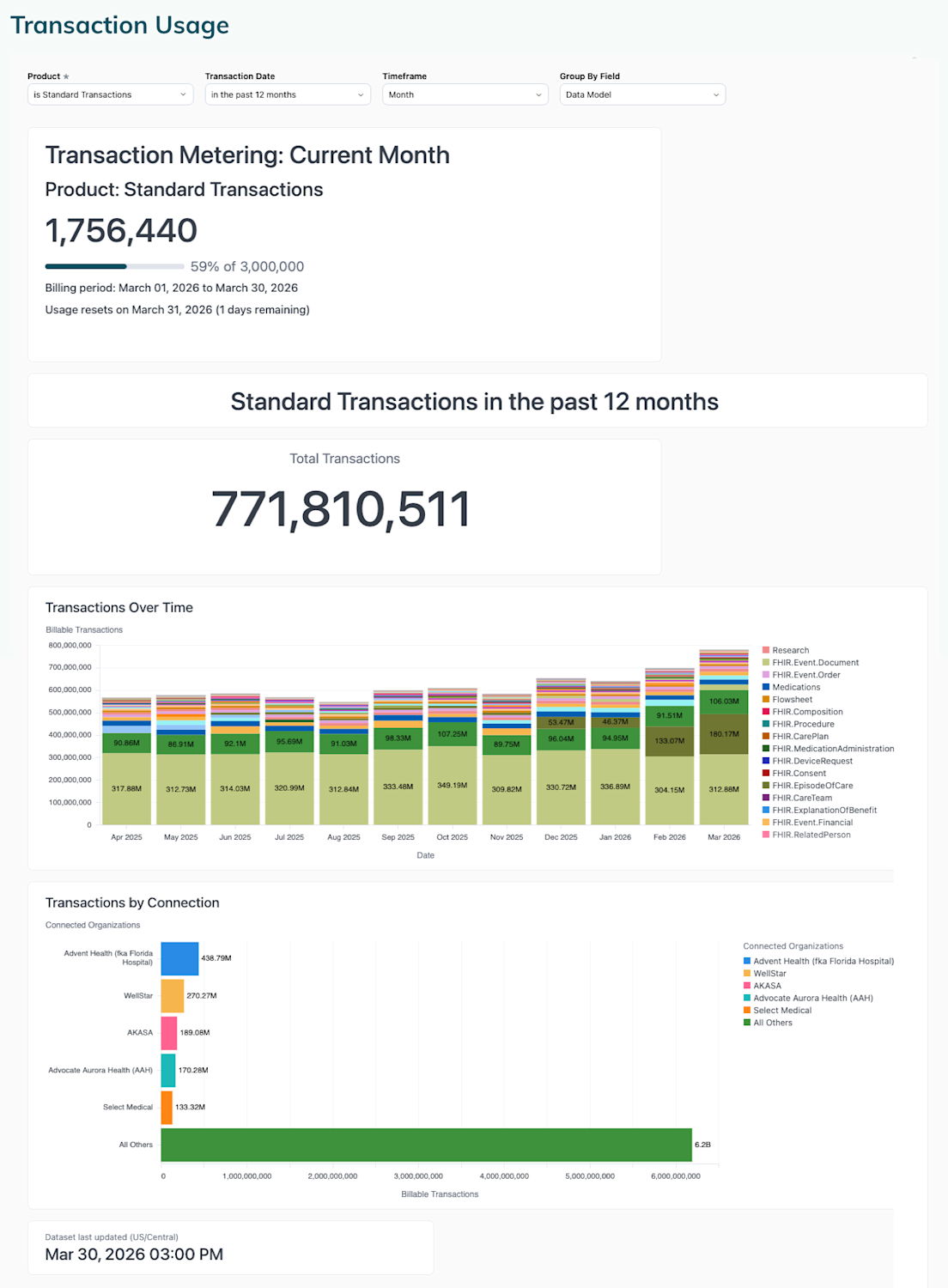
On the Transaction Usage page of the Redox dashboard, the Transaction Counter gives you visibility into your billable transactions (i.e., successful production traffic) by transaction product.

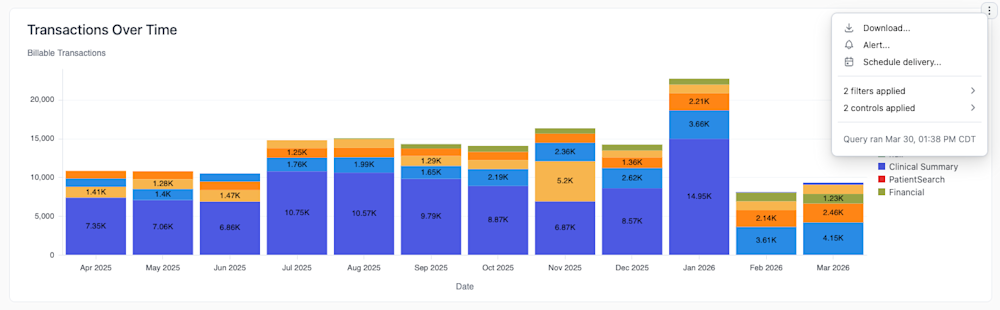
You can download any of the individual reports by clicking the three-dots icon on the top right of the report then select the Download option.

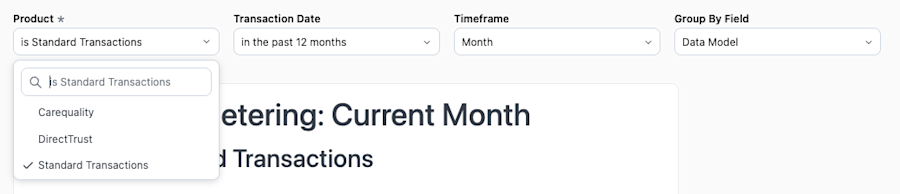
There are four filters that can alter the view of your billable transactions.


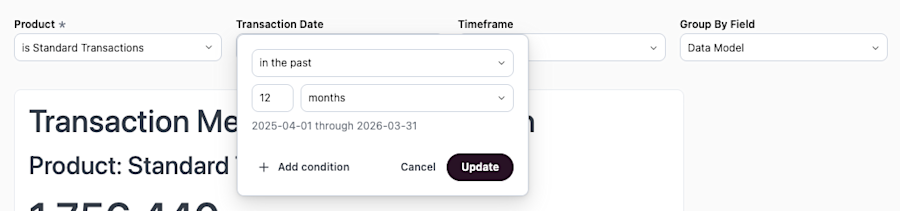

Your transaction volume displays differently depending on whether you are billed monthly or annually. Either way, the Transaction Counter shows you how many transactions you’ve used within your billing period against how many you purchased with your contract.
- For monthly contracts, the start and end dates are typically the first and last day of the month.
- For annual contracts, the start and end dates are the start and end of your contract.

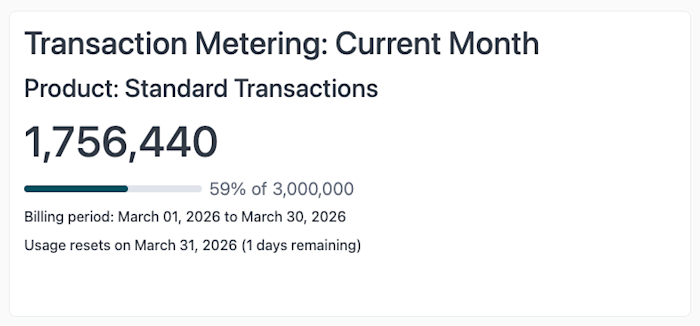

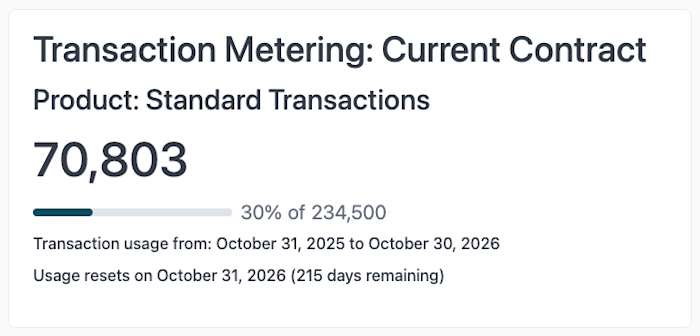
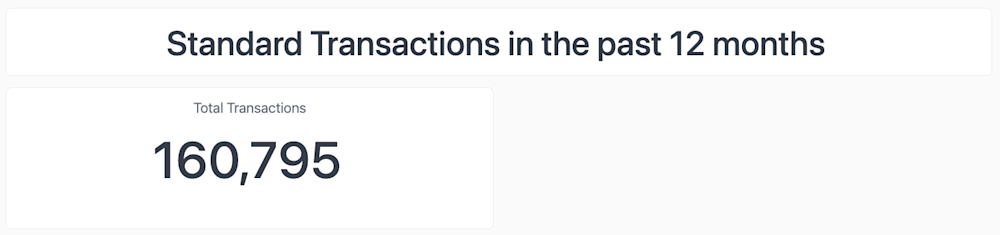
The Total transactions report shows the total number of transactions within the time range defined in the Transaction Date filter.

The Transactions over time report shows the number of transactions based on these filters:
- Transaction Date filter: Defines the time range for the transaction volume.
- Timeframe filter: Specifies the unit of time on the X axis.
- Group By Field filter: Determines whether the transaction volume is displayed as general volume or filtered by data model type.
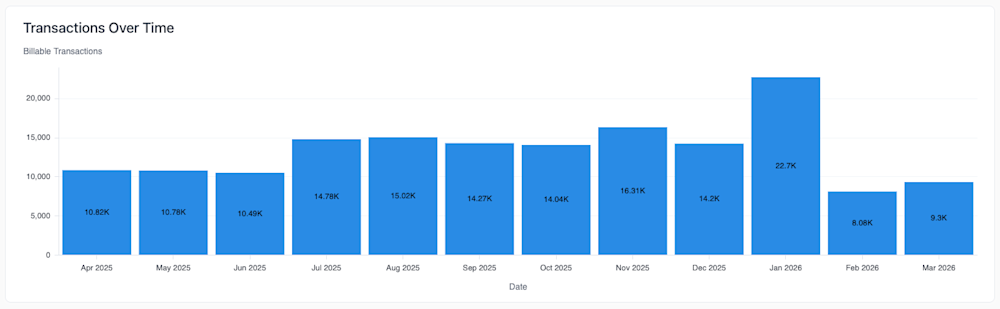
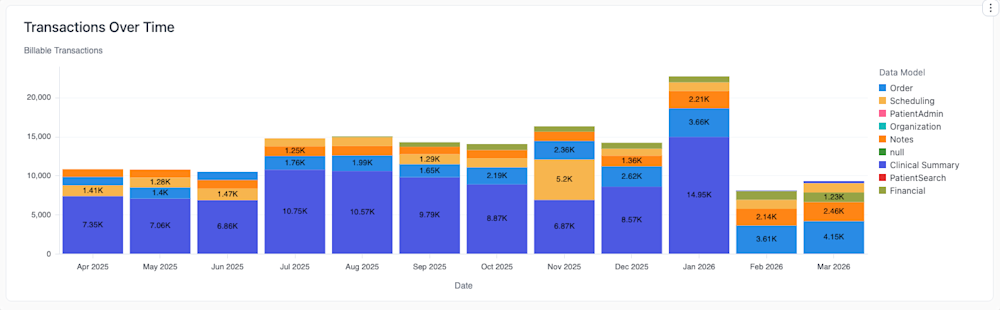
The Transactions by Connection report shows the number of transactions broken down by connection. This is useful if you want to see which connections take up the most of your transactions.

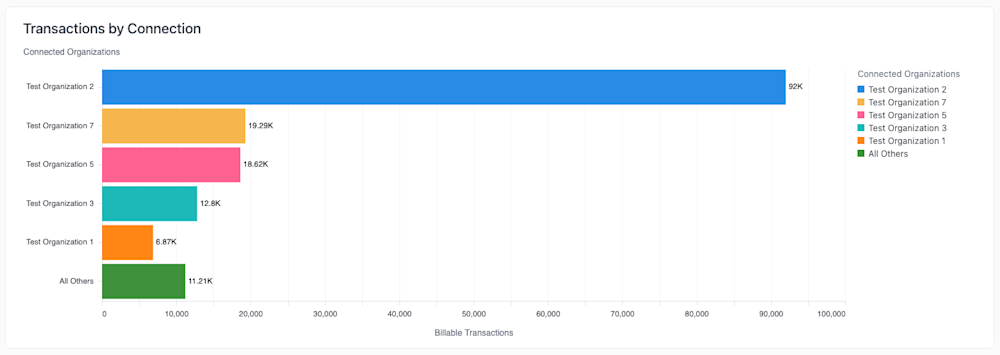
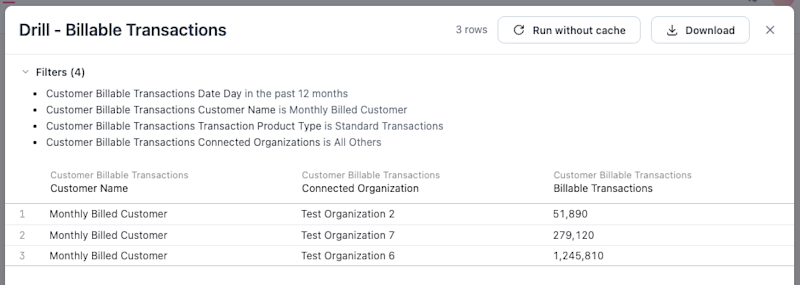
The five connections with the most volume appear as their own bar. If you have more than five connections, the rest are grouped into an All Others bar. To see a granular breakdown of the rest of your connections, click the All others bar, then the Drill into Billable Transactions option.

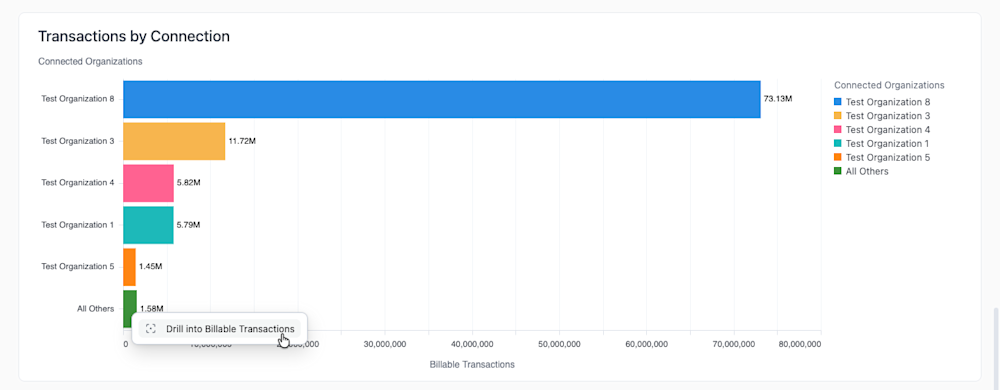
This drill down view shows the rest of your connections and their billable transactions in a table view.

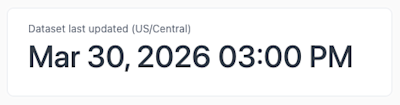
At the bottom of the dashboard, you'll see when the reports were last updated. The dashboard typically refreshes every three hours.